
Product
Every module, and what it actually does
CADER is one application with role-based access, installed on your own servers. Below is each module as it ships today, where AI is used and where it is not, and the exact machine formats CADER writes.
Catalogue and technology data
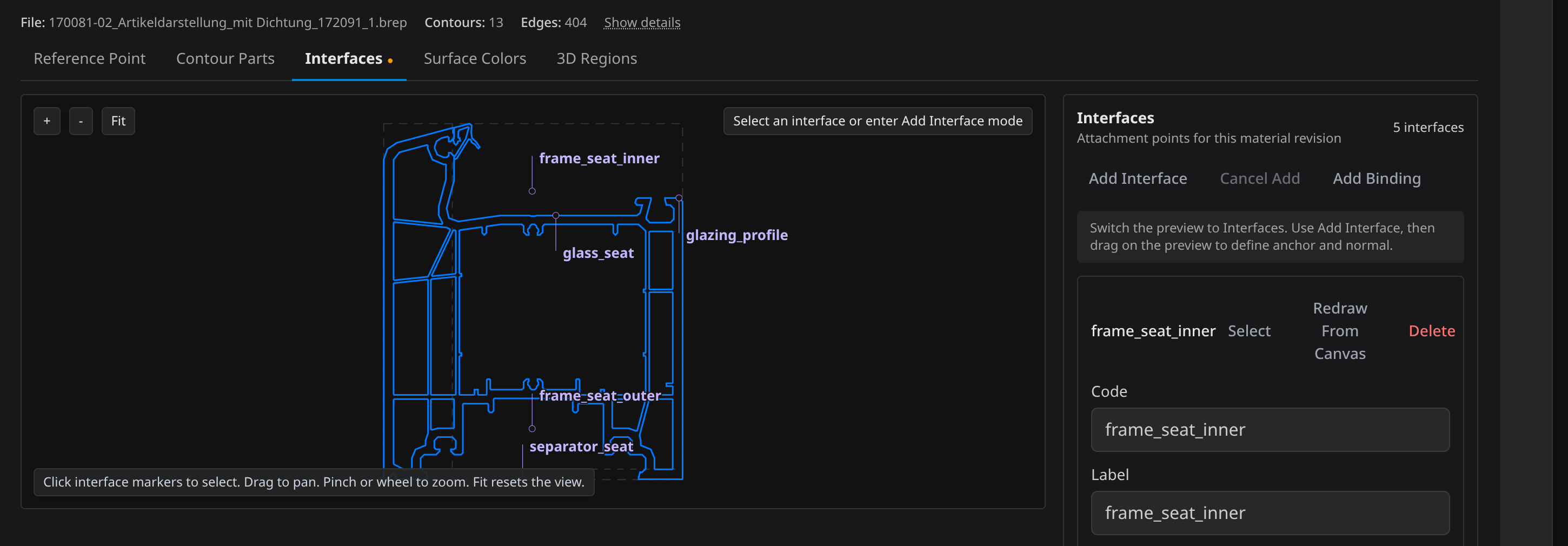
Profile systems, materials, glazing build-ups, colours and the section geometry behind them live in one catalogue. Every price and every cut length in CADER resolves back to it.
- Profiles with their real cross-section geometry, imported from DXF, plus calibration rules for how sections meet each other
- A versioned catalogue with draft, publish and rollback, so a price change has a date and a predecessor
- Glass build-ups and per-profile pricing methods used directly by valuation
3D CAD for windows and doors
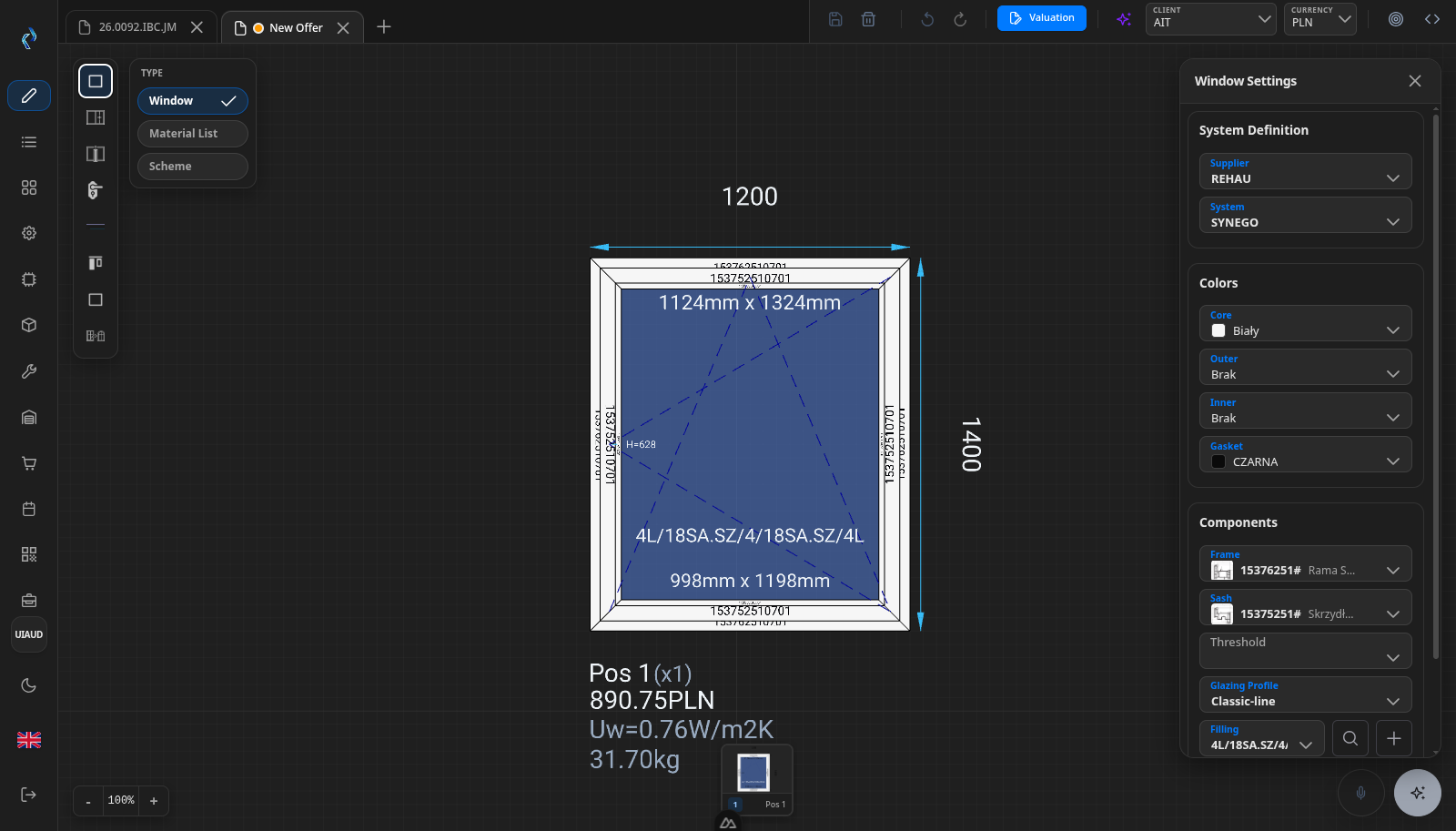
Draw the construction, not a picture of it. Frames, sashes, mullions, glazing and fittings are real objects with real dimensions, so the model is the bill of materials.
- Tabbed offers on a 3D canvas, each with its own scene, undo and redo, client and currency, and a valuation dialog
- Colour, glass, fitting and muntin chosen per element from the catalogue, priced as you draw
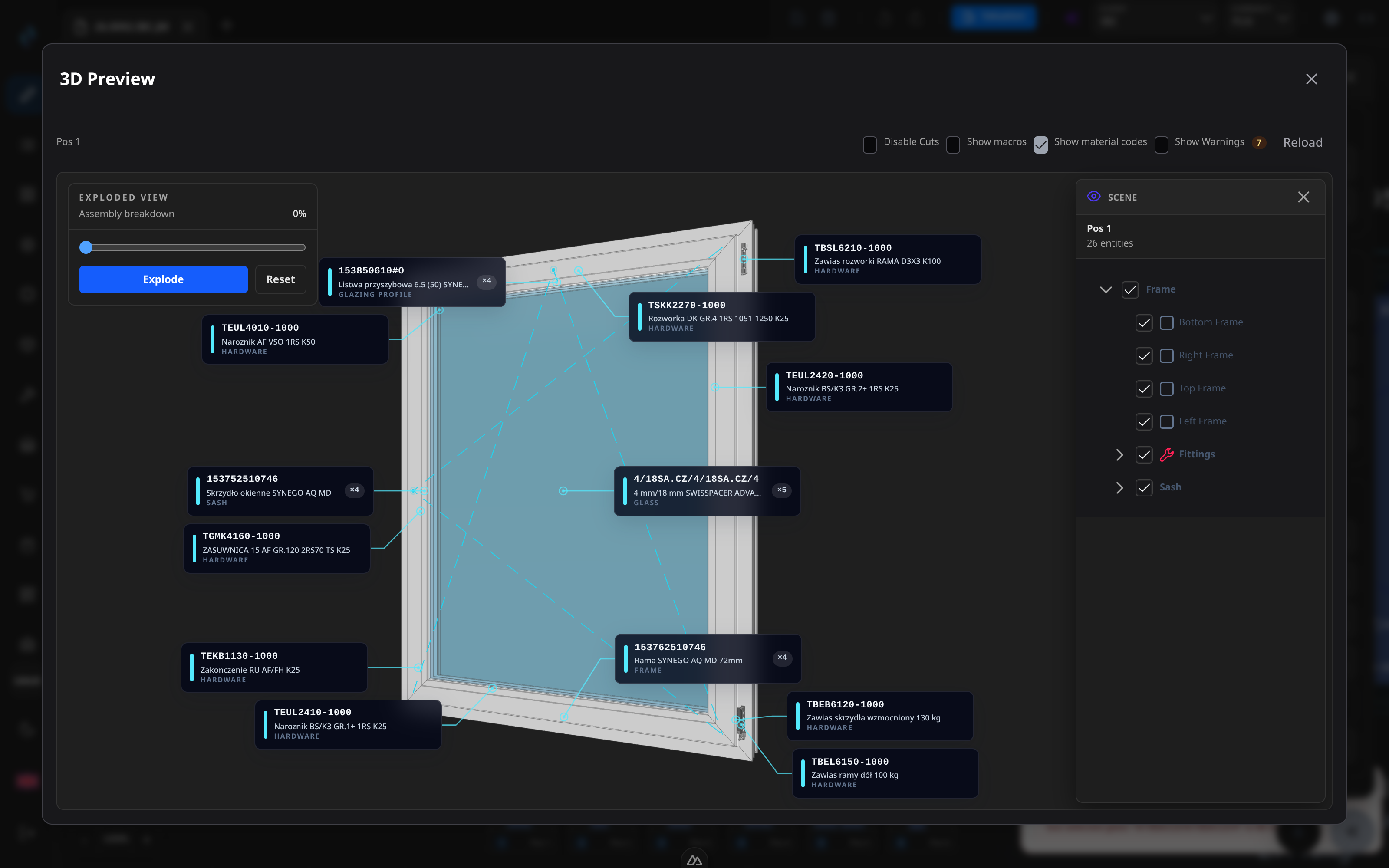
- A 3D position preview with exploded view, material callout labels and opening-direction arrows
Offers and orders
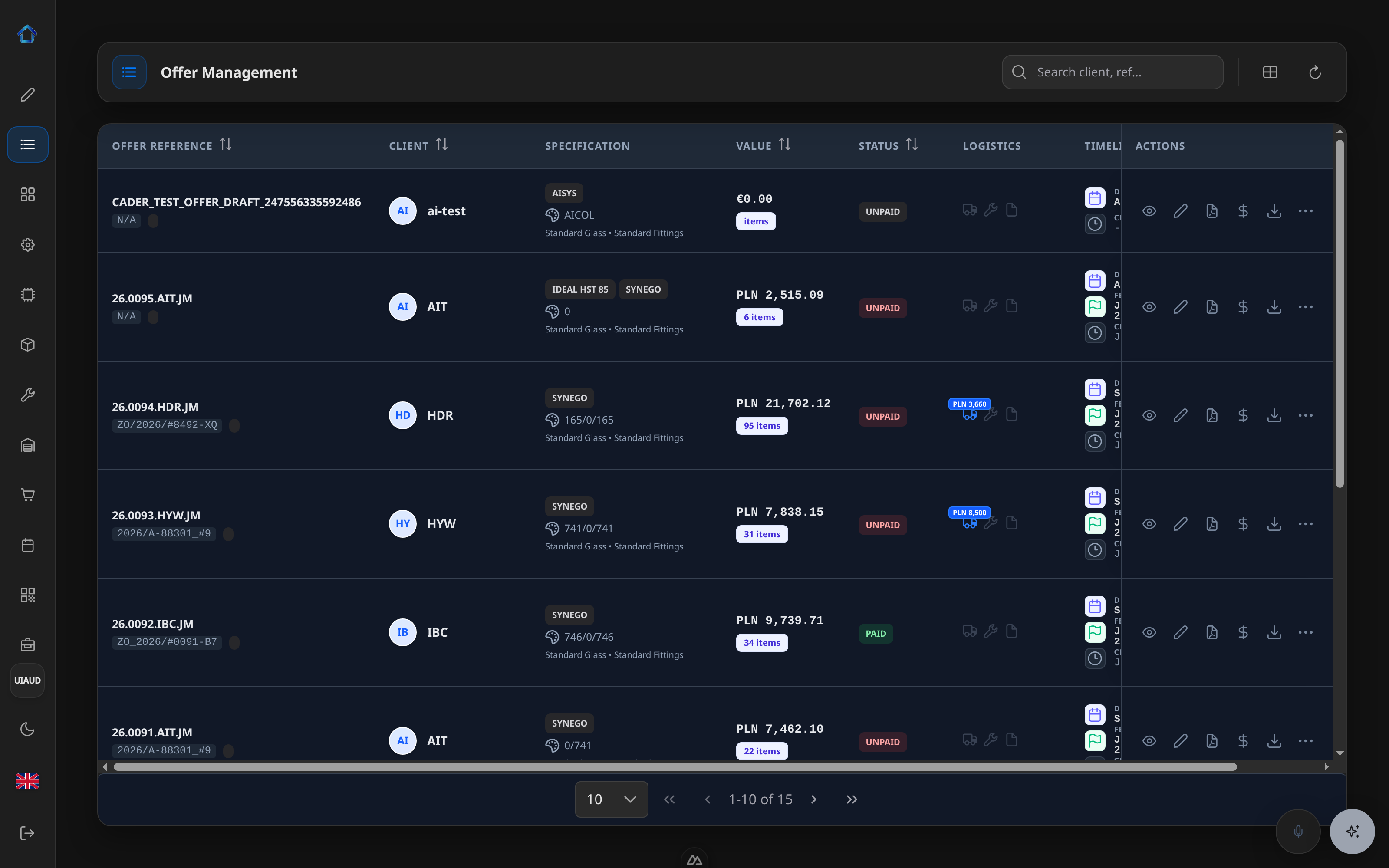
Every saved offer in one sortable table: client, specification, value, quantity, financial status, transport and installation flags. A quote and the order it becomes are the same record.
- A delivery column that compares the promised date against the calculated feasible date, with at-risk markers
- Row actions to reopen an offer in CAD, re-price it, or export it
- Client PDF and valuation reports produced from templates you can edit yourself
Production packages
Bundle positions from one or more offers into a production package. CADER tracks how much of each position is already packaged, snapshots the profile materials it needs, then optimises the bar cutting for the whole batch.
- A cut plan per material: every bar with its used and total length, input leftover and useful-waste code
- Every piece with its code, length, both end angles, cart and shelf, and macro count
- Labels, a cut report and the saw and welding exports, generated together for one traceable batch
CNC and machine programs
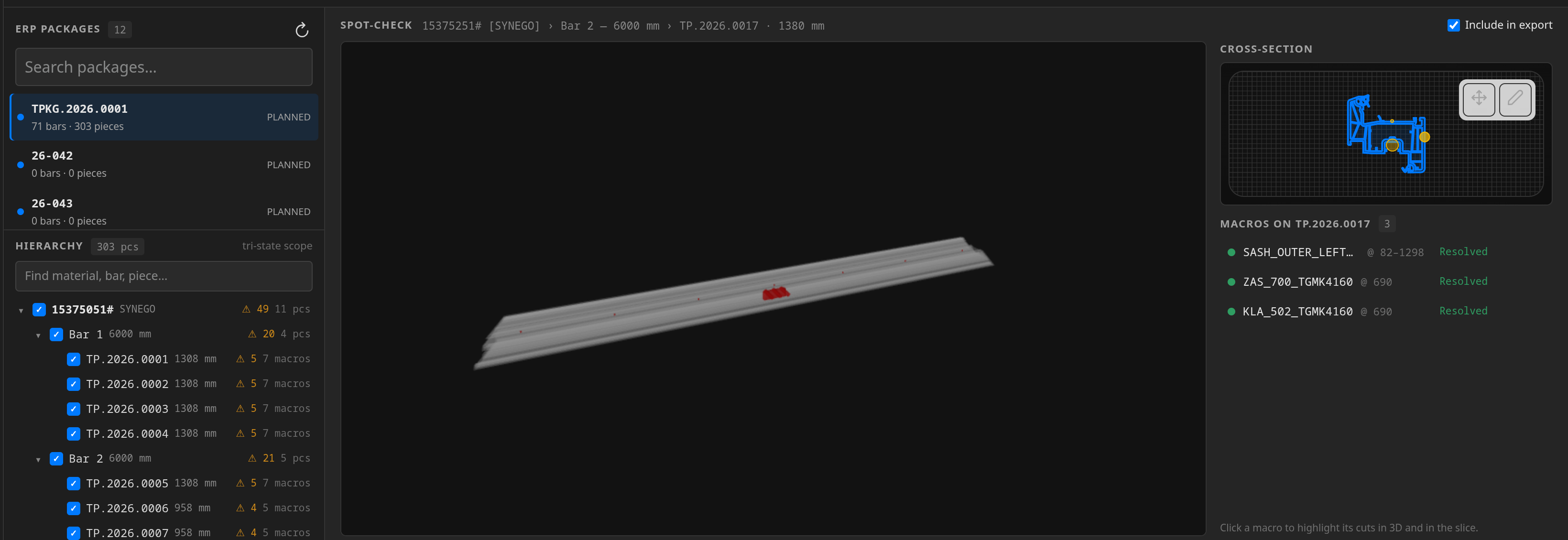
A cut package becomes machine programs. Choosing the target machine re-resolves every macro on every piece, and what the machine does not know is listed rather than written out silently.
- A resolution bar counting resolved, missing, replaced and ignored macros, with triage grouped by name so one fix clears every instance
- A 3D view of any bar or piece with its macros highlighted, before anything is exported
- Macros, machine rules and per-profile CNC data edited in the same module, on four tabs
Stock and warehouse
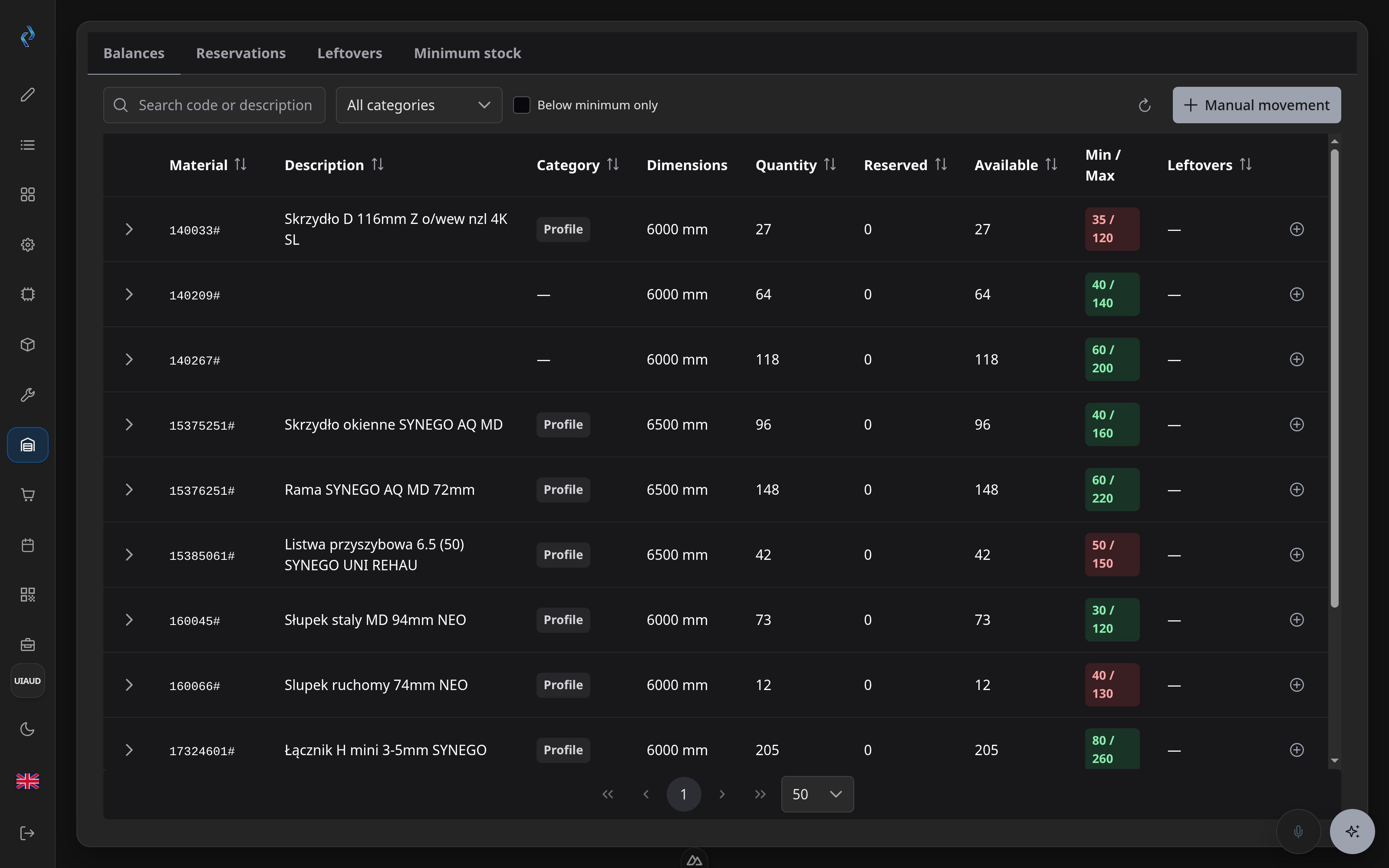
Material on hand, what is reserved for which production package, and the offcuts you can still cut from — on four tabs: balances, reservations, leftovers and minimum stock.
- Quantity, reserved, available, minimum and maximum per material, with movement history on every row
- Reservations held per production package, and issuing against them
- An offcut register and minimum-stock thresholds that feed the purchasing demand list
Issues, receipts and reservations are recorded as internal warehouse movements with a full event log. CADER does not produce invoices, VAT records or other fiscal documents.
Purchasing
Demand is aggregated from four sources — package shortages, minimum stock, offer materials and glass — and turned into purchase orders on the same screen.
- Each shortage line shown with available, incoming and leftover context, and a supplier picker
- Selected lines become draft purchase orders; sending one to a supplier is a separate, deliberate action
- Supplier records and price lists, including price-list import from supplier PDFs
Planning and scheduling
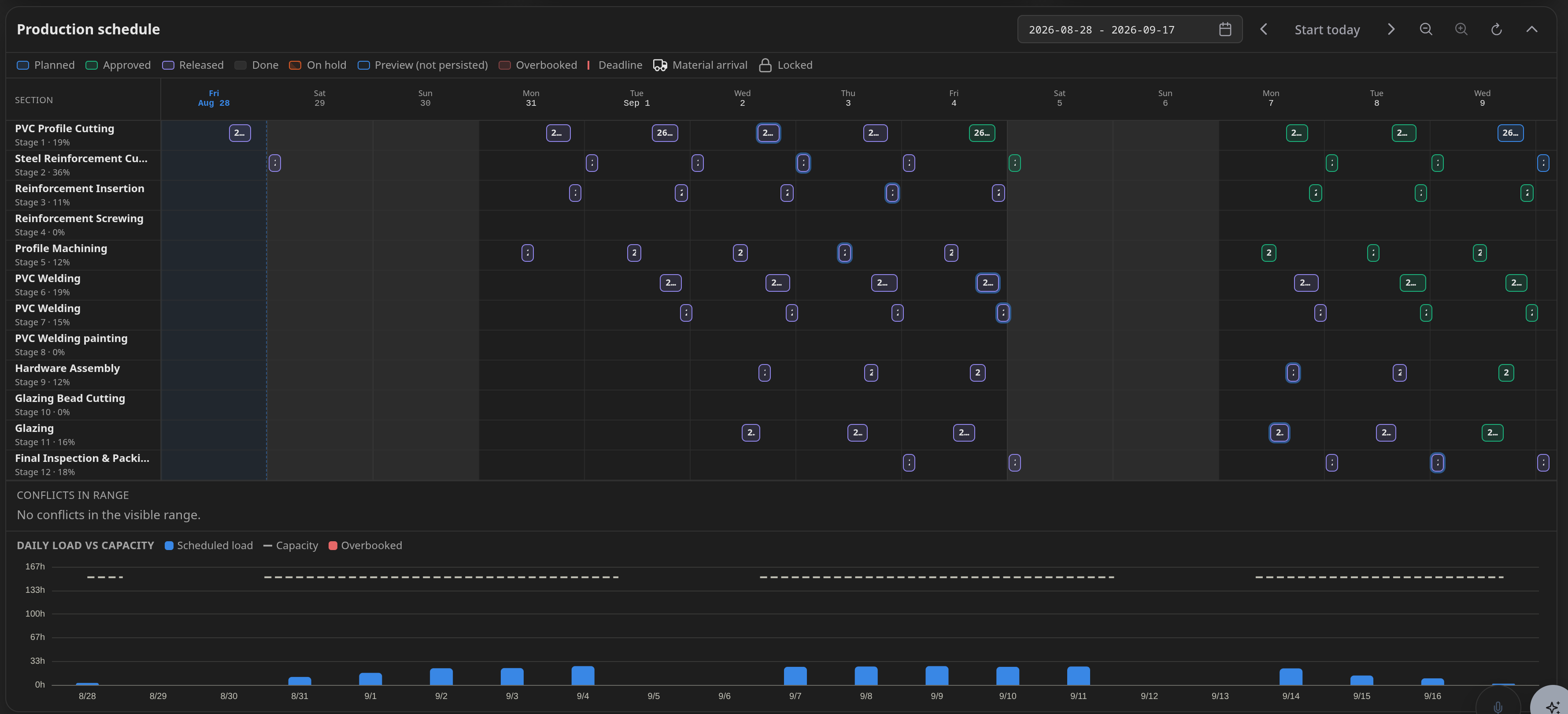
One screen to group offers into packages, confirm the material is covered, and schedule, approve and release production. Scheduling, approval and release are explicit gates a person passes.
- A KPI strip, an offer pool with grouping suggestions, and a package builder with a gate checklist and schedule preview
- A drag-to-reschedule production Gantt with lane stacking, deadline markers and a capacity load strip per day
- An optimiser workspace that runs search jobs and compares whole plans side by side
Planning results are calculated, not guessed: the same input gives the same answer. Applying a proposed plan re-runs the evaluation before anything is committed.
Production tracking
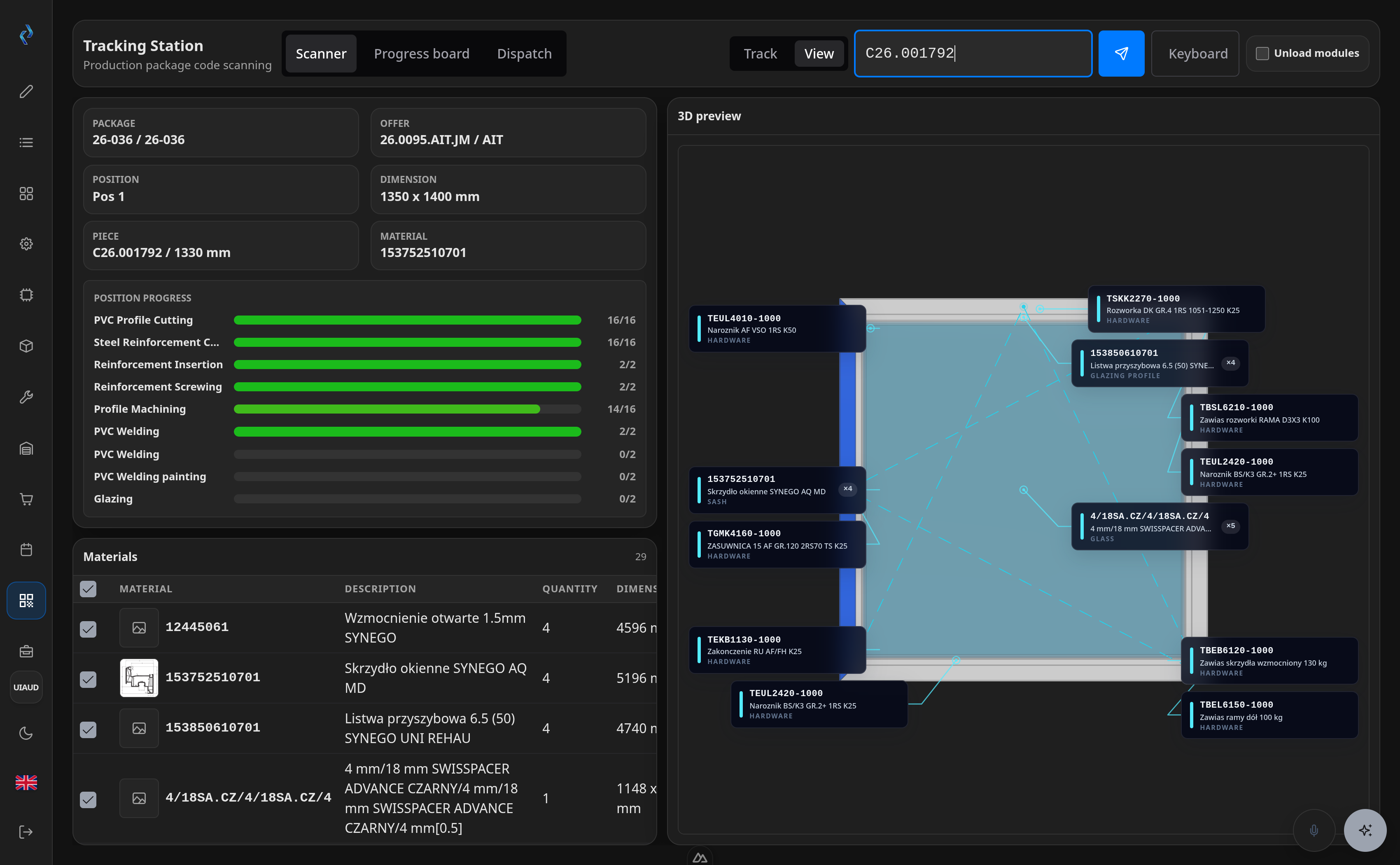
A shop-floor terminal. Scan or type a package or position code to see what to build, the materials it needs and the progress of each production section.
- View mode for looking things up, or track mode where a badge-identified worker books completed work at a section
- A progress board of packages against production sections, and a per-section dispatch list in execution order
- A 3D preview of the item at the terminal, and an on-screen keyboard for gloved hands
Production tracking is live today. The wider warehouse task set in the shop-floor launcher — goods receipt, stocktaking, material issue, dispatch — is shown in the product as a design preview and is not operational yet. It is badged as a preview in the interface too.
Contractors and price lists
Client and supplier records in one place, with the price lists and pricing rules that apply to them.
- Company records with tax id, client and supplier roles and addresses, edited as a form or as raw data
- Client price lists and supplier price lists held against the company
- Per-profile pricing method: exact, round-up or optimisation
Administration and reports
Accounts, shop-floor badges, the working calendar and the planning parameters, plus a report designer for the documents you print.
- System users and roles, and the badge holders who book work on the floor
- Working-calendar exceptions and planning parameters such as offer buffer days and feasible-date enforcement
- A built-in report designer with band layout, toolbox and property grid, next to the template list
Models
Where AI is used
Runs inside your own installation
The AI features run on servers you or we host. Your drawings, prices and customer data stay inside the installation.
AI is used in four places: drawing and schedule import in CAD, voice commands in CAD, the planning assistant, and the company-wide assistant. A knowledge assistant is available as an optional extra.
Drawing import in CAD
Upload a hand sketch or a drawing as an image or PDF and CADER proposes the positions it contains, with dimensions, divisions, opening directions and matching items from your catalogue.
Window schedules from PDF
Upload a supplier or architect window schedule and CADER proposes the positions it contains, matched to your own catalogue.
Voice commands in CAD
Say “three windows 1200 by 1500, Synego, turn-and-tilt” and CADER draws it in the open offer.
Planning draft plans and the planning assistant
The draft-plan screen proposes and ranks production scenarios, each with a short explanation. The planning assistant answers questions about the plan and evaluates groupings you ask about.
Assistants, for administrator accounts
The CADER assistant answers questions about current offers, packages, purchase orders, material demand, stock, planning and production progress. A separate assistant, optional per installation, answers questions about your supplier documentation and cites the document and page it used.
Machine output
CADER writes the files your machines already read
Programs are generated for each machine you configure, straight from the same drawing that produced the quote and the cutting list. Nothing is retyped between the office and the shop floor.
| Machines | What CADER produces |
|---|---|
| Machining centres and saws | Cutting and machining programs |
| Urban machining centres | Machine programs |
| Thorwesten machining centres | Machine programs |
| Stürtz welders | Welding programs per production package |
| Four-head welders | Welding programs, including hinge positions |
| Saw optimisation | Cutting lists with label data |
Machines are configured per site, so output follows the machines you actually run.
Adding a machine is usually straightforward. Tell us which saw or machining centre you run and share the format it reads — most of the time it is a small job. If yours turns out to be an unusual one, we will say so straight away rather than after you have committed.
What CADER reads in
- Supplier price lists imported from PDF
- Profile cross-sections imported from DXF
- DWG section import, behind an experimental flag
- Drawings and window schedules as image or PDF, reviewed before anything is created
What CADER does not do
- No connector to an external accounting or ERP package. CADER is the ERP: the catalogue, offers, stock and purchasing live in it, so there is no second system to keep in sync.
- No invoices, VAT records or other fiscal documents. Stock issues, receipts and reservations are internal warehouse movements with an event log.
- If your accounts department needs a specific export, ask us about it directly rather than assuming it exists.
See it on your own products
A demo is a working session, not a slide deck. Send us one of your profile systems and a typical construction, and we will show you the same window priced, drawn in 3D, and turned into a cutting list and a machine file.